Guides
How to Use Mureka AI for a Finished Video Soundtrack
- Written by
- Sonilo Team
- Published
Your picture is locked, but the music still has one job: make the cut feel finished without swallowing the voiceover. Mureka AI has a Soundtrack mode that accepts a video and generates music for it. That gets you to a candidate, not necessarily to the final mix. This guide follows the remaining steps, including the awkward one: bringing a scored video back into an edit you have already approved.
This documented workflow is not a hands-on test. Mureka's instructions and terms were checked September 29, 2026; confirm your account's controls and rights before publishing.
Start With a Locked Video Cut
Export the approved picture and keep the editing project. If a shot length or final frame changes, expect to revisit the score.
For a voiceover-led video, include dialogue only if you have permission to upload it. Mark the first image, main story change, and last frame. A track can match the length while its musical turn lands after the reveal.
Prepare a Soundtrack Brief
Write the brief beside the cut. The useful detail is where the feeling changes and what the music must leave alone.
Mark Mood and Scene Changes
Note each turn: restrained under the opening explanation, a lift at the reveal, then a resolved ending. Ask for instrumental music if lyrics would compete with speech. Mureka's Soundtrack feature description confirms text direction for mood, style, and instruments, but not frame-specific accents.
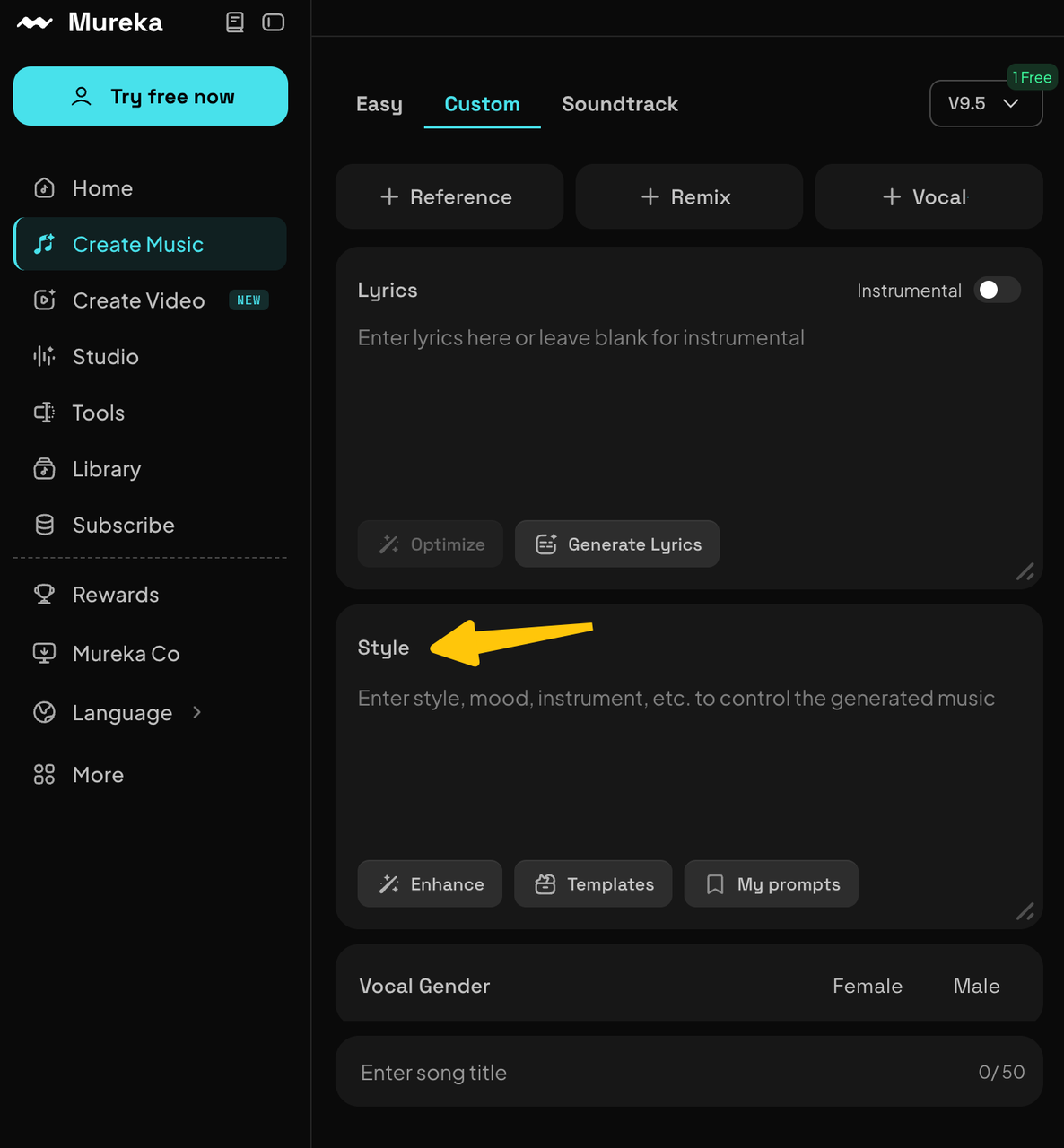
Protect Dialogue and Key Sound Effects
Mark lines carrying names or the scene's point, plus effects such as a door click before a reveal. “Soft keys and a light pulse; no busy lead during narration” tells the music where to make room. “Cinematic and emotional” does not.
Upload the Video to Mureka
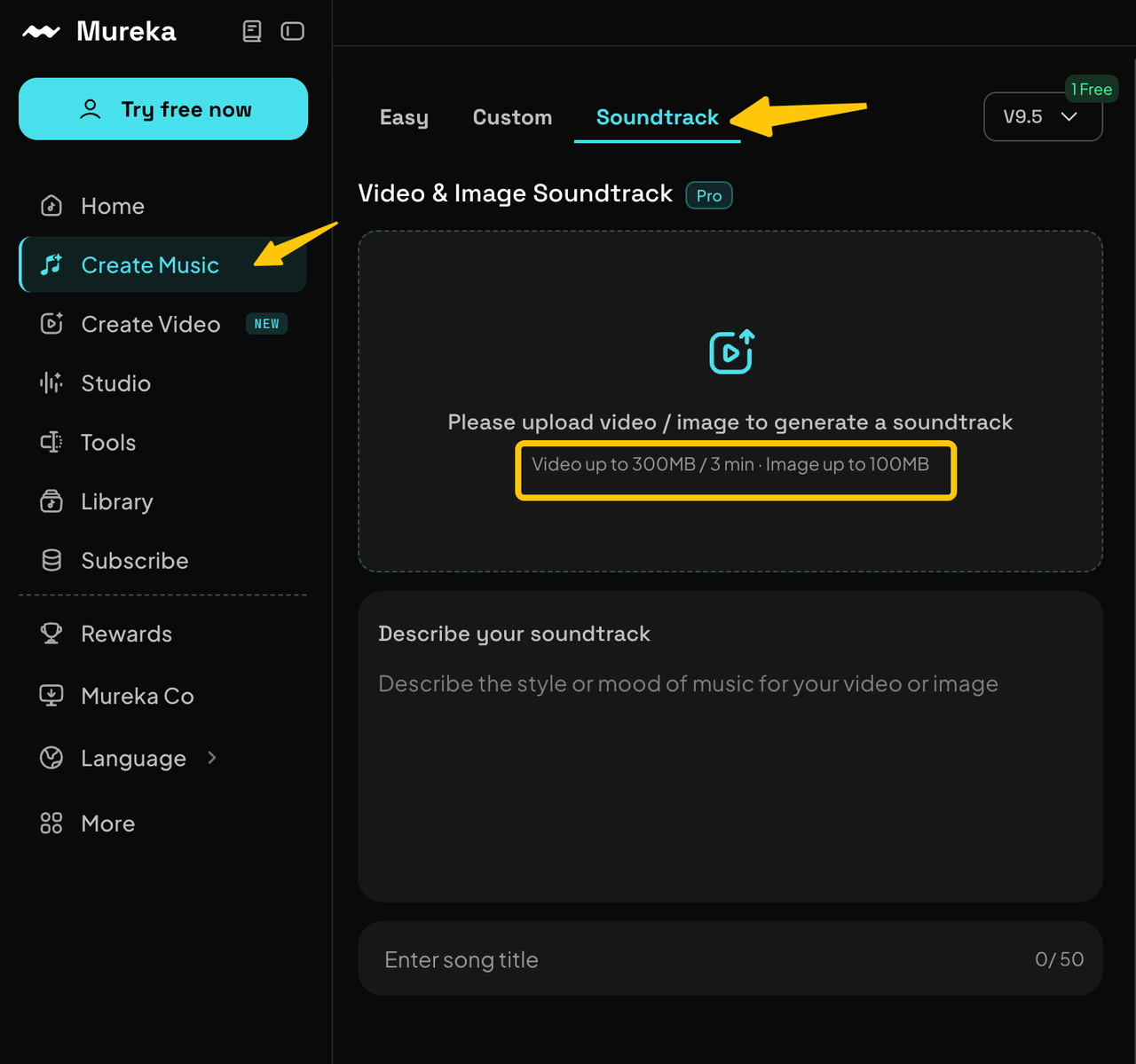
In Create Music, open Soundtrack, upload the locked video, add your brief, and choose instrumental if that suits the cut. Mureka's current Soundtrack instructions list MP4, MOV, and MPEG videos up to 300 MB and three minutes. Check both limits before compressing. A lighter proxy can guide generation, but retain the full-quality locked cut for the final edit.
Before uploading a client film, check permission for its footage, voices, and music. Mureka's terms for uploaded content put responsibility for those rights on the uploader, while its privacy policy describes processing user-provided content; verify the current policy's treatment of uploaded video and audio before using client material. If the film contains unreleased material or a voice you cannot share with a third party, clear that issue before pressing Upload. Cropping a logo out of a proxy does not resolve an uncleared voice.
Generate and Shortlist the Music
Generate a few directions from the same brief, then stop and listen against the picture. Mureka describes Soundtrack as matching the uploaded content and duration. Treat that as the product's stated aim, not proof that every transition will land where your edit needs it.
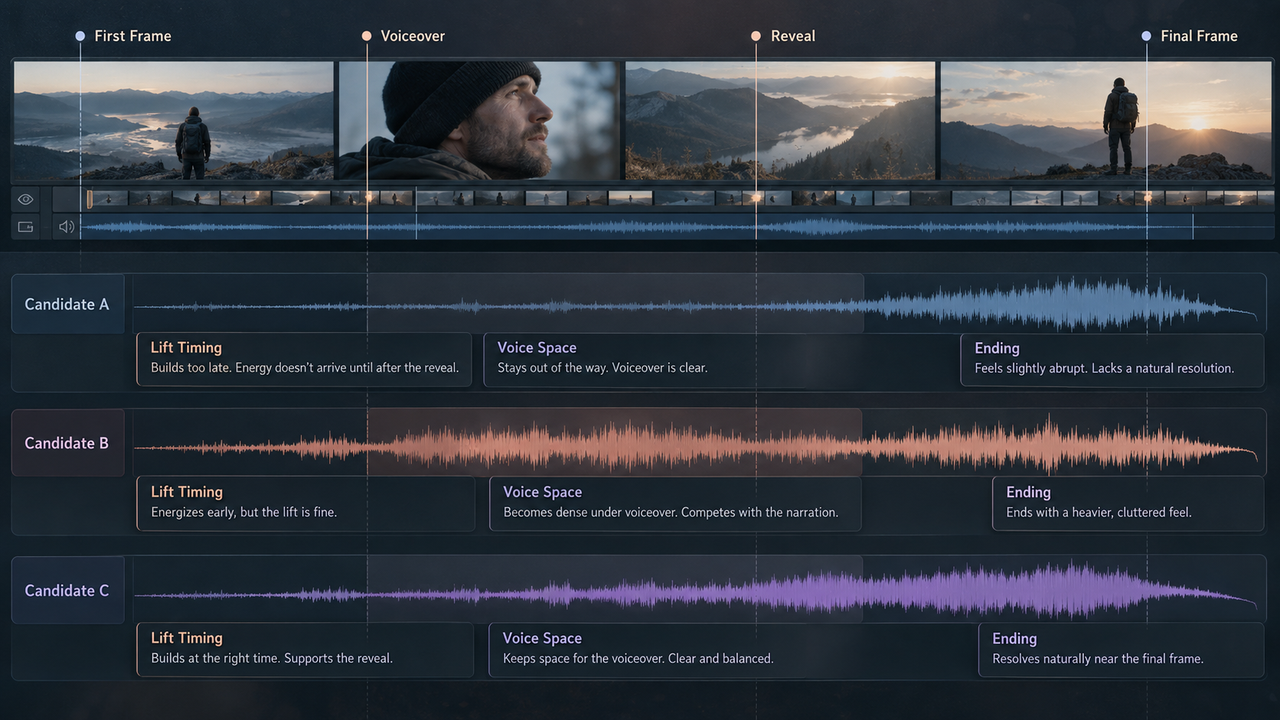
Shortlist against the video, not a music player. Keep the brief and selected candidate so a revision does not become a different assignment.
Check Runtime and Scene Fit
Play from first to last frame. Does the lift happen after the reveal? Does the final chord resolve before the end card? Note the mismatch in timeline terms. “Lift late at the reveal” gives you a revision target; “not exciting enough” invites another vague generation.
Check Voiceover Space
Audition at the approximate level you will use in the final mix. If a lead instrument keeps masking consonants, turning the whole track down may erase its emotional role. Try the quieter candidate or revise the brief for less midrange activity under speech. Save the music that supports the sentence, not the music that wins a solo audition.
Move the Music Into Your Editor
Mureka's public Soundtrack walkthrough describes a Download Video path. Balance the original video's audio against the new music, then download a scored video. That walkthrough does not confirm a separate Soundtrack audio-file export. Plan around the file your account offers.
If Download Video is the available route, set the source-audio balance deliberately. For independent mixing, mute the source audio there if the control allows it, download the scored video, and detach its audio in your editor. Keep the original locked picture underneath. This is an editor-side workaround, not a promise of clean stems or a dedicated music export. For a broader explanation of scoring from footage, see Sonilo's video-to-music workflow.
Align Starts, Endings, and Transitions
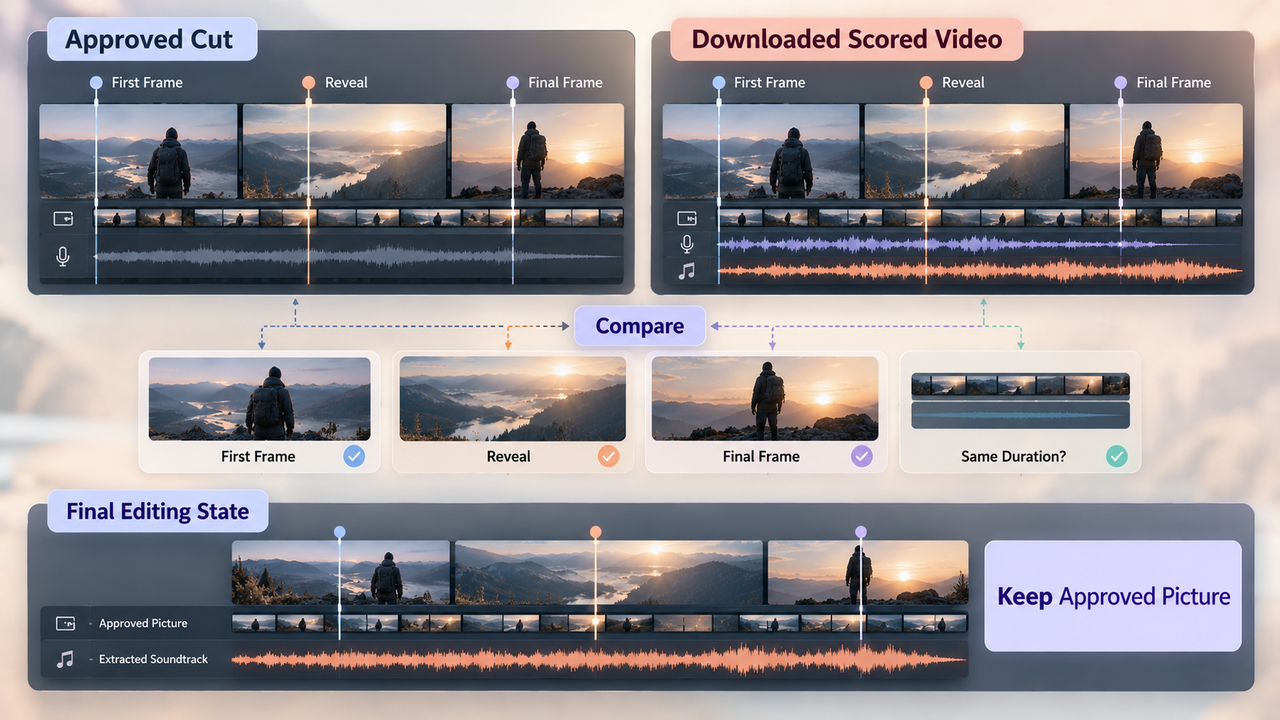
Place the extracted audio at the first frame of the original cut. Compare the downloaded video's picture with the approved version before deleting or hiding either layer. An export with an extra opening frame or a changed ending should not silently replace the approved picture. Set markers at the reveal and final frame, then listen around them rather than judging fit from the waveform alone.
Mix Against Dialogue and Sound Effects
Use the original dialogue and effects tracks as your mix source. If you also leave those sounds inside the downloaded Mureka video, you may double them. Lower or automate the music beneath speech, then check the quietest phone-sized playback you can manage. The small speaker often tells you faster than studio headphones whether the narration still owns the scene.
Revise When the Picture Changes
If the editor shortens an opening shot, first ask whether a trim and fade preserve the musical arc. If the reveal or ending moves, the score may need a fresh pass. Save the old scored version before generating again, and compare both against the new markers. A changed picture does not mean every approved music choice has to disappear.
Do not assume Mureka detects the exact cut you changed or updates music inside your video editor. Its documented Soundtrack flow starts from an uploaded video. Re-upload the revised locked cut when the relationship between music and picture genuinely changes; then repeat the speech and ending checks.
Check Licensing Before Publishing
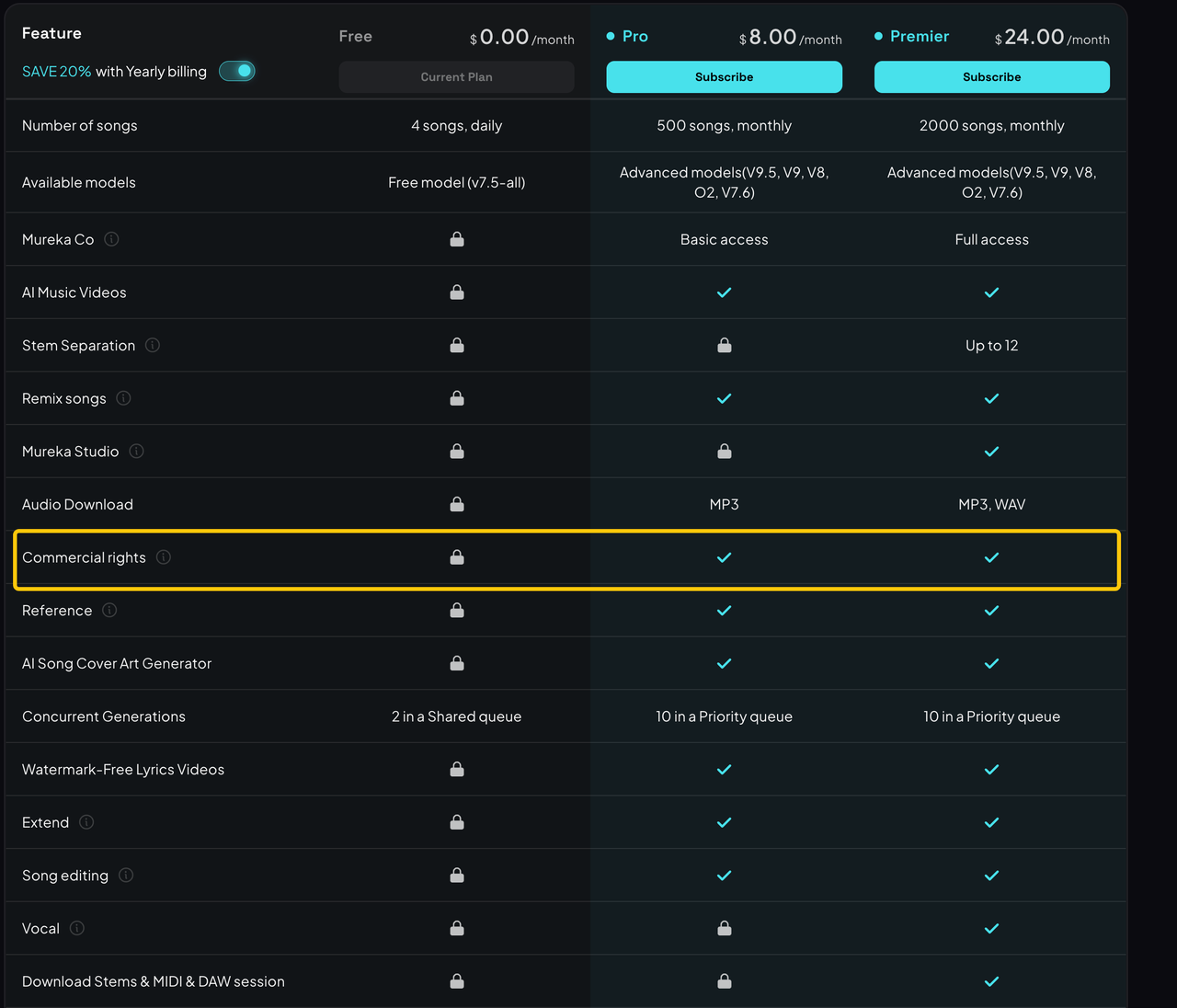
Mureka's current plans describe commercial use rights for paid plans. Its terms distinguish output created during a paid subscription from output created by free users; free-user output is limited to personal, non-commercial use with attribution. Do not read “free to generate” as “cleared for a client ad.” Check the plan and terms attached to the account that made this track. Keep the terms and download record with the project.
This is general information, not legal advice. A license for generated music also does not clear footage, voices, or pre-existing audio that you uploaded. If a client needs paid media, redistribution, or a particular territory, have the responsible person check those uses against the current terms before release.
Limitations and Trade-Offs
Mureka can make the first scoring pass from the video. Its public Soundtrack instructions do not establish frame-accurate sync, automatic cut detection, or direct integration with your editing timeline. The published three-minute and 300 MB upload limits also matter for longer work. Exporting a scored video may be convenient for a quick post and less convenient when a mixer needs an isolated music file.
The trade-off is simple: you can get a music direction from the picture, but you still own the last-frame test and the dialogue mix. If those are the painful parts of your project, reserve time for them before promising delivery.
Conclusion
Use Mureka AI to turn a locked cut into soundtrack candidates, then make the final decision in the editor. The worthwhile candidate is the one that reaches the reveal, stays behind the voice, and lets the last frame finish cleanly. Keep the approved picture and your source-audio tracks separate, and settle rights before the scored file leaves the project.
FAQ
Can Mureka save a reusable brief for another project?
The official Soundtrack instructions do not confirm a reusable project-brief preset. Keep your prompt and scene-marker notes in your own project folder, then rewrite the timing details for the next cut. Reusing a mood phrase is useful; reusing another video's reveal point is not.
Can collaborators comment on generated tracks?
Mureka's public Soundtrack documentation does not describe timed collaborator comments. For team review, share a labeled preview and collect notes against the video timecode. That makes “music feels late” actionable even if the account has no review layer.
Does Mureka expose Soundtrack through its official API?
Yes. Mureka documents a Soundtrack generation endpoint that accepts an uploaded video ID or image ID. It is a developer route, separate from the web editor. Check its current authentication and billing before building it into a production tool.
Can project files be downloaded after canceling a plan?
It is not confirmed by the public Soundtrack guide. Download the scored video, prompt, and approval notes before canceling, then ask Mureka support about any assets you cannot export. Do not make a client archive depend on an unconfirmed retention window.
Does Mureka attach provenance metadata to exported audio?
The official Soundtrack pages reviewed do not specify a provenance field on exported audio. Keep the source video, prompt, generation date, plan record, and output together; metadata alone would not replace that production trail. If a client requires a particular provenance standard, verify it on the actual delivered file.