Guides
AI Add Sound to Video: Generate Music and SFX
- Written by
- Sonilo Team
- Published

A finished cut can look complete and still sound rough. A visible action has no audible consequence, or the narrator disappears as music arrives. If you're looking for an AI add sound workflow, start with that cut—not a request for “more audio.
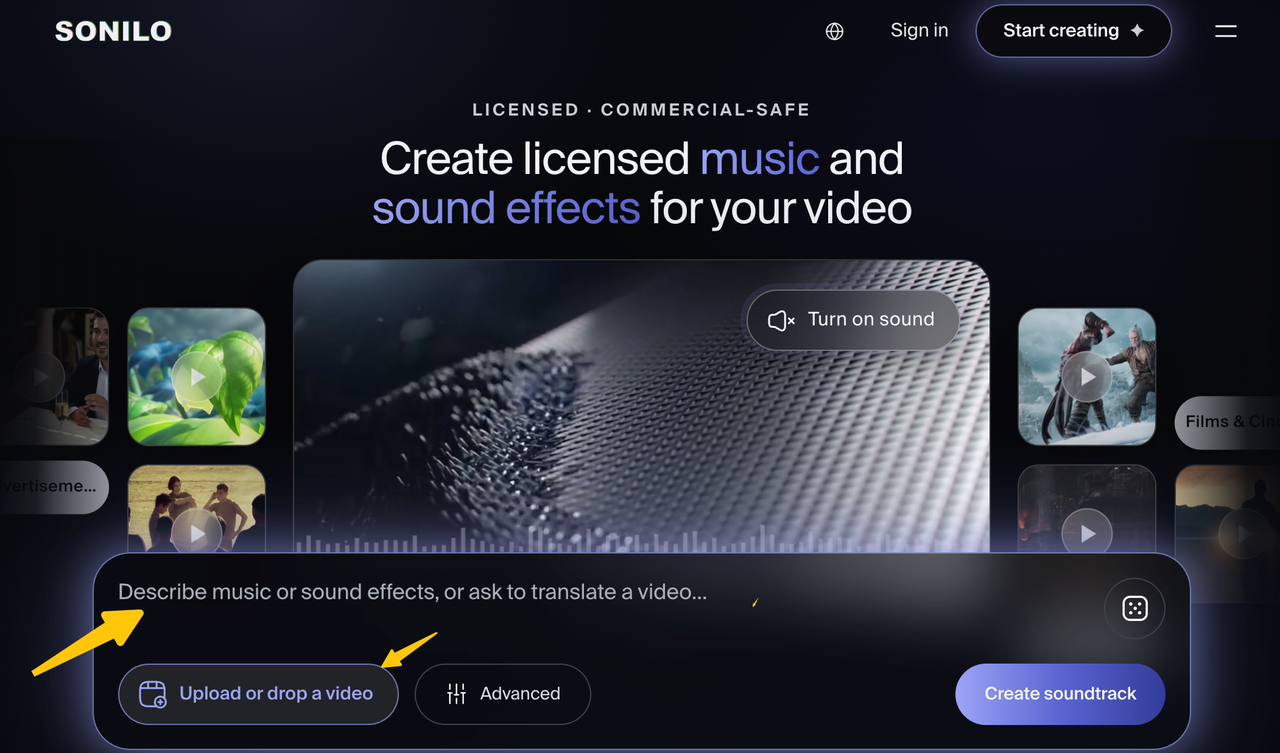
I'm Nico. This is a one-video workflow for generating music and sound effects from the picture, then deciding what actually belongs in the final mix. Sonilo's current tutorials show a video-upload route for music and SFX.
What Can AI Add to a Finished Video?
Music carries energy across time: an opening pulse, a quieter passage under speech, a final lift. Effects make actions legible: a door, footstep, swipe, or impact. One dramatic cue cannot do both jobs in every scene.
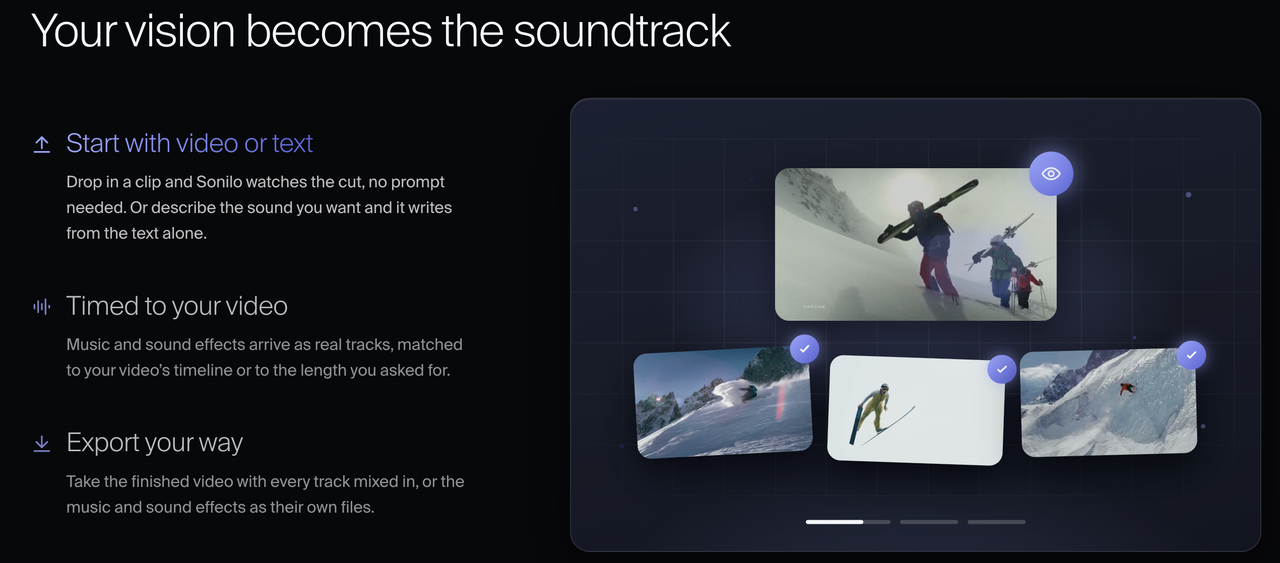
Sonilo's homepage says a creator can start with video or text, receive music and effects as tracks, and export either a mixed video or separate audio files. Those are product descriptions, not proof that every generated cue will land perfectly. The editor still decides whether the proposed sound serves the action and whether original audio should stay.
If you already have an audio file, use the separate guide to adding an existing audio file to video.
Prepare a Short, Locked Cut
Export the intended cut, including its opening and end card. A moved reveal makes the first audio pass harder to judge. Keep the original audio before replacing or layering it.
Mark the Moments That Need Music or Effects
Watch once with the volume low. Mark an opening, one visual action, a scene change, and the final frame. Write a short brief in terms of what viewers need to feel or notice: “quiet movement under the introduction; one restrained impact on the product reveal; no new sound over the spoken result.”
Do not ask for a hit on every cut. A montage may need a pulse; an object placed on a table may need one precise effect. If everything is accented, nothing feels chosen.
Identify Speech and Original Sounds to Keep
Listen again with the picture off. List sounds that explain the scene: speech, laughter, a latch, street traffic. Sonilo says its video generation uses visuals and allows original audio to be kept, adjusted, replaced, or layered; you still choose. Its current FAQ describes these options.
Generate Music and Sound Effects From the Clip
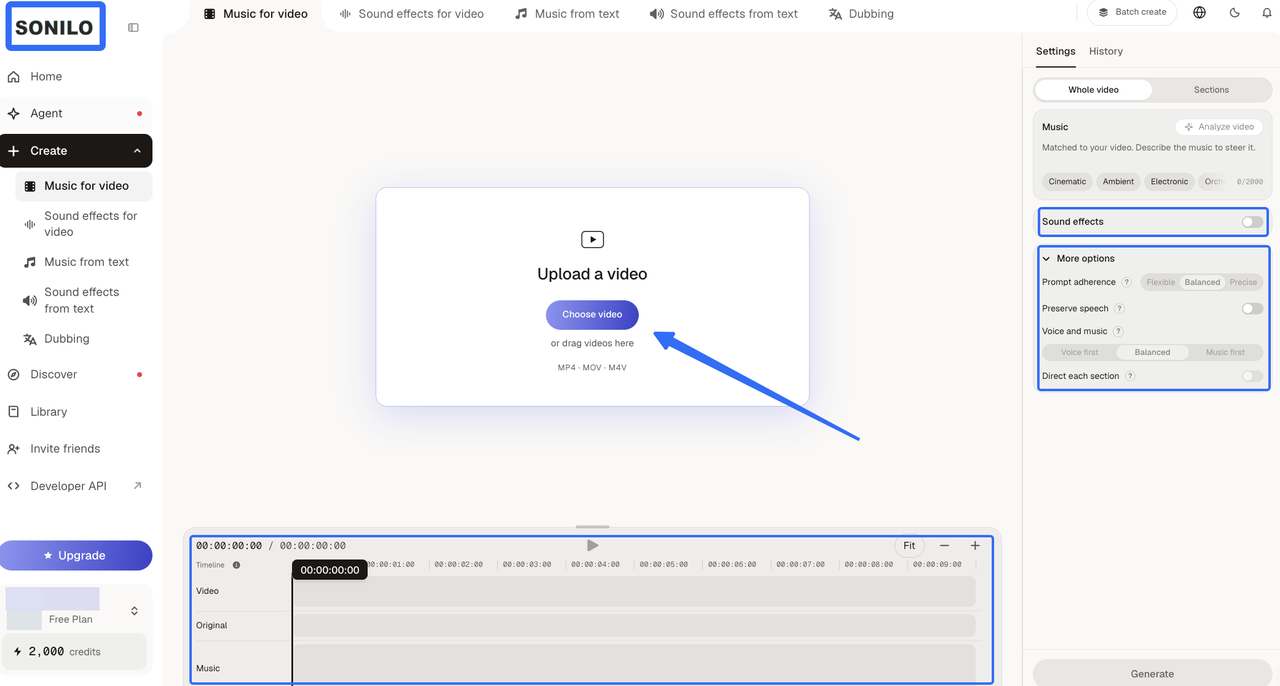
Upload the locked file to a video-to-audio tool that supports both outputs. In Sonilo, the first-video walkthrough shows upload, a generated video description, music-plus-SFX selection, comparison of versions, and export. Its tutorials also show section changes and action-following effects. Screen labels can change, so treat the tutorial as the current route rather than a promise about every account view.
Use a restrained brief: “light pulse under narration; soft click when the lid shuts; leave the final sentence clear.” The picture supplies timing context; your words set emphasis.
Choose the Sound That Supports Each Scene
Compare candidates against the same frames. Does music grow busy under the key line? Does an effect identify an action or invent one? Keep what improves understanding. Silence works when location sound already serves the scene.
If one action needs a sound with a different texture, a single-effect task may be cleaner than regenerating the whole clip. The custom soundeffects guide covers that narrower job; this page is about hearing the new music and SFX together.
Review Music and Effects Together
Solo each new layer first, then play the full mix. A transition whoosh may seem modest alone but crowd the same moment as a drum fill. Choose which layer leads. If the effect carries the visual action, ease the music there; if the music already marks the transition, remove the redundant effect.
That two-pass listen turns generated sounds into a deliberate mix. Can the viewer still follow the clip?
Check Timing and Speech Space in the Mix
Use three anchors for a quick review: the opening, the most important visible action, and the final frame. Then replay every spoken line with the full mix. This is an editor's acceptance method, not an automatic scoring feature.
Listen at Each Cut and Visual Action
Zoom in around the action. A footstep before a foot lands or an impact after an object stops can make the shot feel oddly weightless. Shift or trim the effect if your editor allows it; otherwise try another generation or omit it. Also listen across the cut after the action. A long tail should not spill into a new room unless that carryover is intentional.
Music sections should support the visual arc without forcing every edit onto a beat. A late chord may take a fade; an unresolved ending may need another version.
Lower or Remove Sounds That Mask Dialogue
Play the densest spoken sentence at an ordinary device volume. If consonants disappear, lower the music, reduce the effect at that moment, or remove one layer. Do not judge speech clarity only through studio headphones; a phone speaker exposes crowded midrange quickly.
If the tool offers original-audio controls, preserve speech and meaningful camera sound deliberately. An automatic duck or volume slider can help, but neither knows which whispered word or natural sound carries the story. Listen again after every balance change.
Export and Review the Finished Video
Choose the mixed-video export when the sound is final and no further editing is needed. Choose separate music and SFX files when you want more control over cue placement, fades, or dialogue balance in your editor. Sonilo's homepage currently describes both routes, but the available quality and account limits depend on plan; check the export choices shown in your account before committing a delivery format.

Play the rendered file outside the creation interface. Listen to the first second, the marked action, every speech passage, and the ending on headphones and a phone. Check for a missing effect, changed level, abrupt tail, or original sound that vanished in export. The file you publish—not the preview window—is the final mix.
Where AI Sound Still Needs an Editor
AI can suggest a useful bed and plausible effects from the image. It cannot decide that a real location sound is more meaningful than a polished substitute, or that a quiet beat of silence makes a joke land. A generated effect can be too early, too large, or simply wrong for the material on screen.
If the cut changes, revisit the anchors. A moved reveal or new voice line can invalidate music and SFX placement. Keep the last approved version for comparison.
Conclusion
For an AI add sound workflow that actually helps, ask for fewer, better-chosen cues. Lock the cut, mark what viewers must hear, generate music and effects, then listen at the opening, the action, the speech, and the ending. If you want to try the video-first route, start with Sonilo's music-and-SFX tutorial and bring the result back to your own final-mix check. The finished video should sound like the scene—not like every available track was switched on.
FAQ
Can a silent video be used to generate music and sound effects?
Yes, the video can provide the visual input even when it has no original audio. Sonilo says its video-to-audio path reads the visuals, and its tutorial shows a music-plus-effects option. You still have to check whether the generated ambience or action sounds make sense; a silent source provides no recorded acoustic reference.
What upload formats and size limits apply?
Sonilo currently lists MP4, MOV, and M4V. Its pricing table lists video-upload caps of 3 minutes/500 MB on Free, 8 minutes/1.5 GB on Pro, and 30 minutes/3 GB on Premium. Confirm the limit shown in your account before uploading. These limits are plan-specific and may change. Check the current upload screen and pricing page for your account before exporting a long or large file.
How are credits counted when generating music and SFX together?
Sonilo currently lists 18 credits per output second for Video-to-Music and 18 for Video-to-Sound-Effects, with a 15-second minimum and a 200-credit minimum per generation. The pricing table does not show a separate all-in price for combined music-plus-SFX generation. Sonilo's Help Center says the combined workflow counts as two generations, with a 400-credit minimum. Review the cost shown before you generate; do not assume one output is free because the other was selected.
Can generated audio be imported into a mobile video editor?
Usually, if your editor accepts the exported file format and you can save the file to your device. Sonilo says it can export separate music and SFX files; the mobile editor controls which formats it imports and how precisely you can place them. Try one short file first, then confirm timing after the mobile export rather than assuming the preview matches the delivered video.
What usage rights apply to a generated soundtrack in a monetized video?
On Sonilo's current licensing page, Free and Creator are for personal, non-commercial use; eligible commercial rights begin with Pro, with different scopes for Premium, Enterprise, and some API terms. A paid plan is not a universal copyright or platform-clearance guarantee. This is general information, not legal advice. Check your plan, the current Terms, input permissions, and the destination platform's rules before publishing.
Related Posts
- How to Add Sound Effects on CapCut
- Free Sound Effects for Video Editing: Libraries vs AI
- Transition Effect Sound: How to Use It in Video Edits
- Foley Artist Sound Effects: How They Are Created for Video